# How to patch your windows 8,10,11
**Published:** July 8, 2026
**Author:** VIN STAR
**Categories:** Tutorial
**Tags:** Explanation of Customization
---
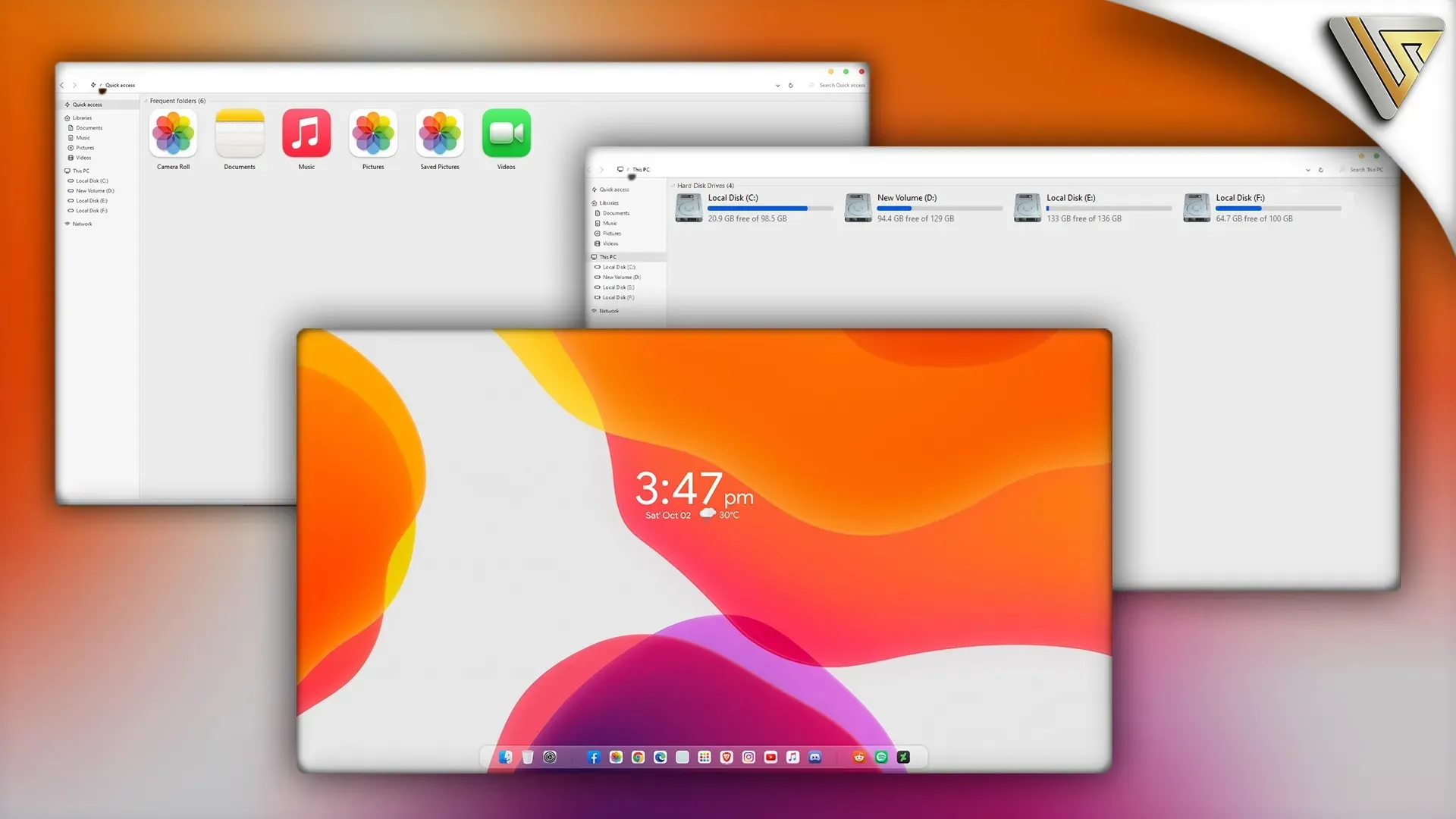
**How to patch your windows 8,10,11 Download File:** [https://mhoefs.eu/software_uxtheme.php](https://mhoefs.eu/software_uxtheme.php)
## How to patch your windows 8,10,11
To use third-party themes on Windows, you’ll need to install a theme patcher. You can find various theme patchers online. Here’s a guide on how to install Ultra UXTheme Patcher. Don’t forget to [**Create a Restore Point**](https://www.vinstartheme.com/how-to-create-windows-restore-point-in-a-simple-way/) before doing this
- Download **Ultra UXTheme Patcher** from a trusted source.
- Run the installer. Most of the time, you just need to click ‘Next’ through the steps, similar to installing any other application.
- After installation, restart your computer and check if the patcher status shows ‘patched’.
- If the patcher status shows as ‘patched’, you can use third-party themes on your computer.
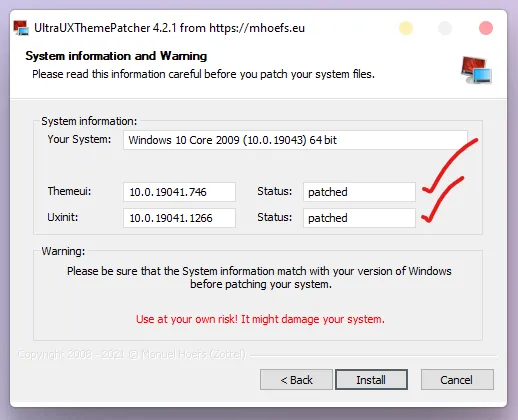
The UltraUXThemePatcher, you may notice that the status indicates whether your system is “**Patched**” or “**Unpatched**.” If it shows “Unpatched,” follow the steps below:
### Solution 1
#### Add Take Ownership to Context menu
This registry file will add a Take Ownership option to your context menu
```text
Download
```
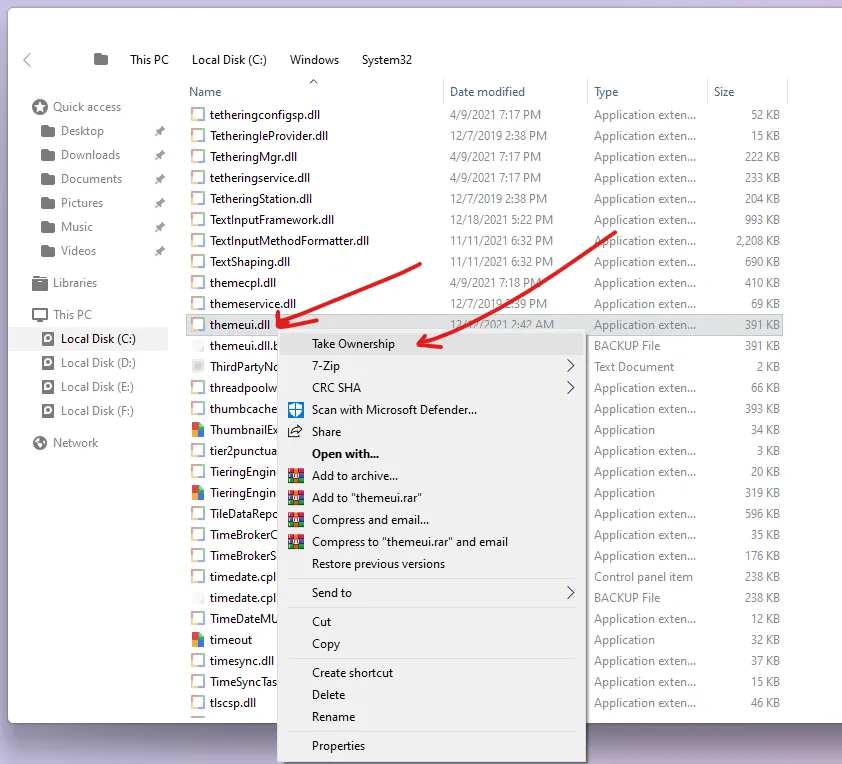
- First Download and install the **Add Take Ownership** registry file.
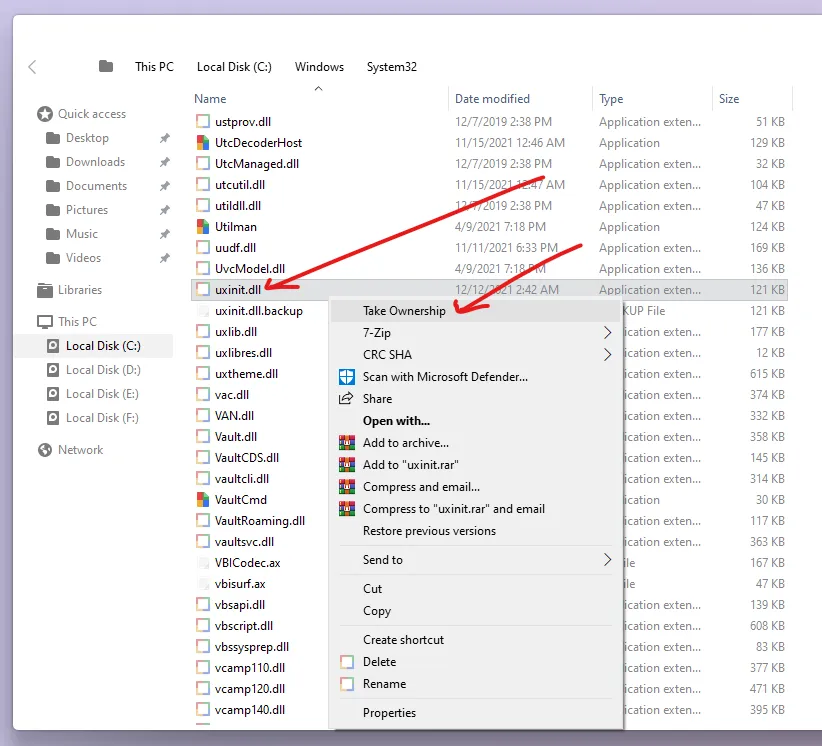
- Open “Local Disk – C:\Windows\System32 then find **themeui.dll** and **uxnit.dll** files
- Right-click on the themeui.dll file and click Tack Ownership
- Then right-click on the uxnit.dll file and click Tack Ownership
- Now reinstall the Ultra UXtheme Patcher.
### Solution 2
```text
Download
@echo off
net session >nul 2>&1
if %errorlevel% neq 0 (
powershell -Command "Start-Process '%~f0' -Verb RunAs"
exit
)
echo Granting Take Ownership to themeui.dll and uxinit.dll...
takeown /f "C:\Windows\System32\themeui.dll" /a
icacls "C:\Windows\System32\themeui.dll" /grant administrators:F /t
takeown /f "C:\Windows\System32\uxinit.dll" /a
icacls "C:\Windows\System32\uxinit.dll" /grant administrators:F /t
echo.
echo.
echo Operation completed. Now you can install your Ultra UXtheme patcher.
pause
```
- Download the **batch script** provided.
- Run the batch script on your computer.
- Install Ultra UXTheme Patcher after running the script.
- Restart your computer to apply the changes.
- Check if the Patcher status shows “Patched.”
- If the status is “Patched,” proceed to apply third-party themes to your system.
After installation, restart your computer and check if the patcher status shows ‘patched’as shown in the image below
[Follow my youtube](https://www.youtube.com/@vinstar) channel and you will know new windows customization soon
---
**Original URL:** https://www.vinstartheme.com/how-to-patch-your-windows-81011/