# Windows 11 Center Taskbar
**Published:** October 21, 2024
**Author:** VIN STAR
**Categories:** Windows 11 Mod Styles, Windows 11 Taskbar Styler
**Tags:** Windhawk Mod Styles
---
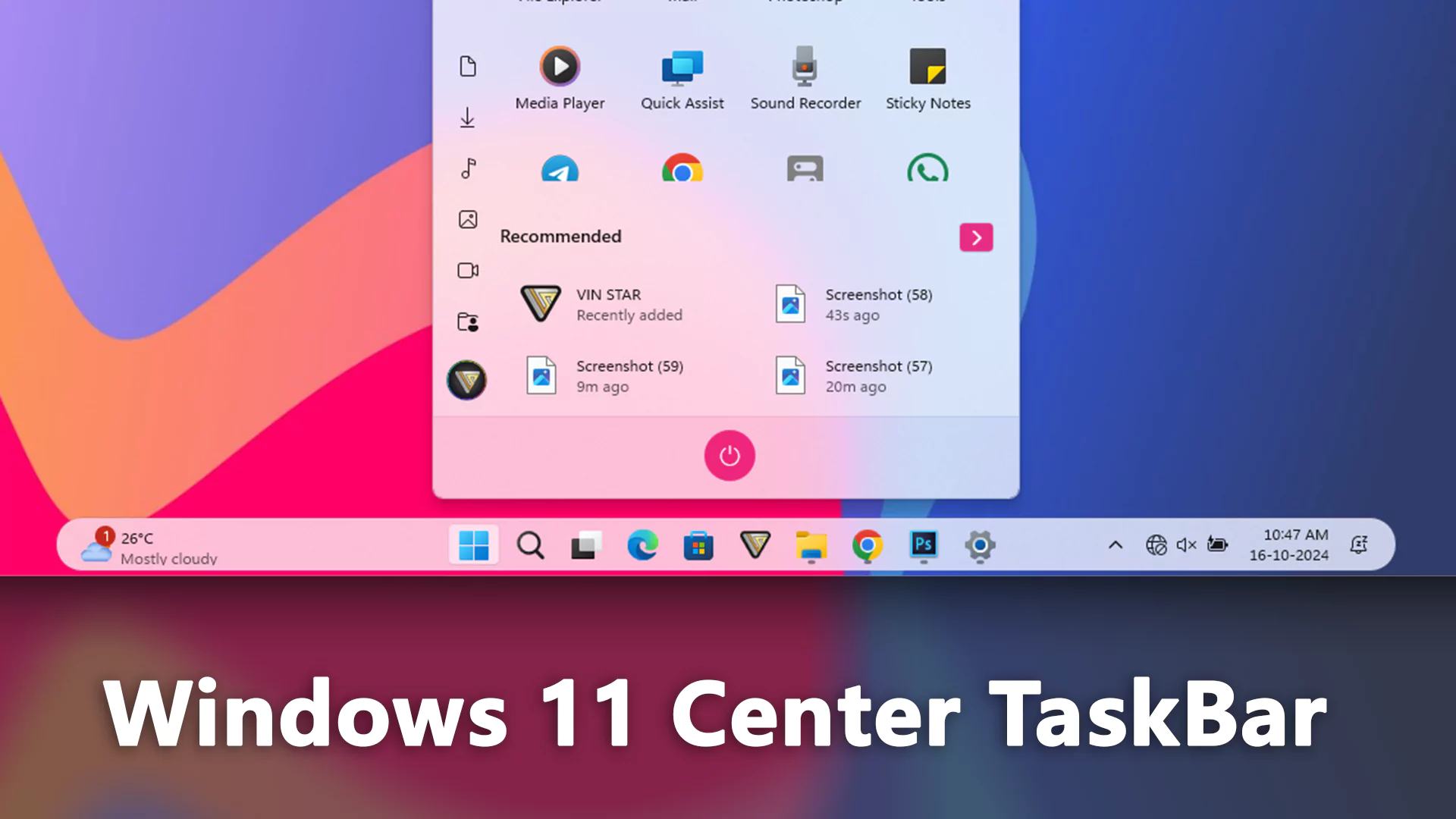
## Windows 11 Center Taskbar for Windows 11
Easily create a Windows 11 Center Taskbar by following these simple steps using the Windows 11 Taskbar Styler Windhawk mod. This guide will walk you through the installation and customization process, allowing you to effortlessly center your taskbar and enhance its appearance. Whether you’re looking for a cleaner, more symmetrical look or simply want to personalize your desktop, this tutorial will help you achieve a sleek, modern centered taskbar in just a few minutes.
> ### Steps to Install Windhawk and the Mod:
>
>
> - Download and install [Windhawk](https://windhawk.net/).
> - Open Windhawk and go to “Explore” in the upper right menu.
> - Search for “Windows 11 Taskbar Styler” and click “Details.”
> - Click “Install” and accept any pop-ups.
> - After installing the mod, open its “Advanced” tab and Paste the given code into the Mod settings.
## Center Taskbar
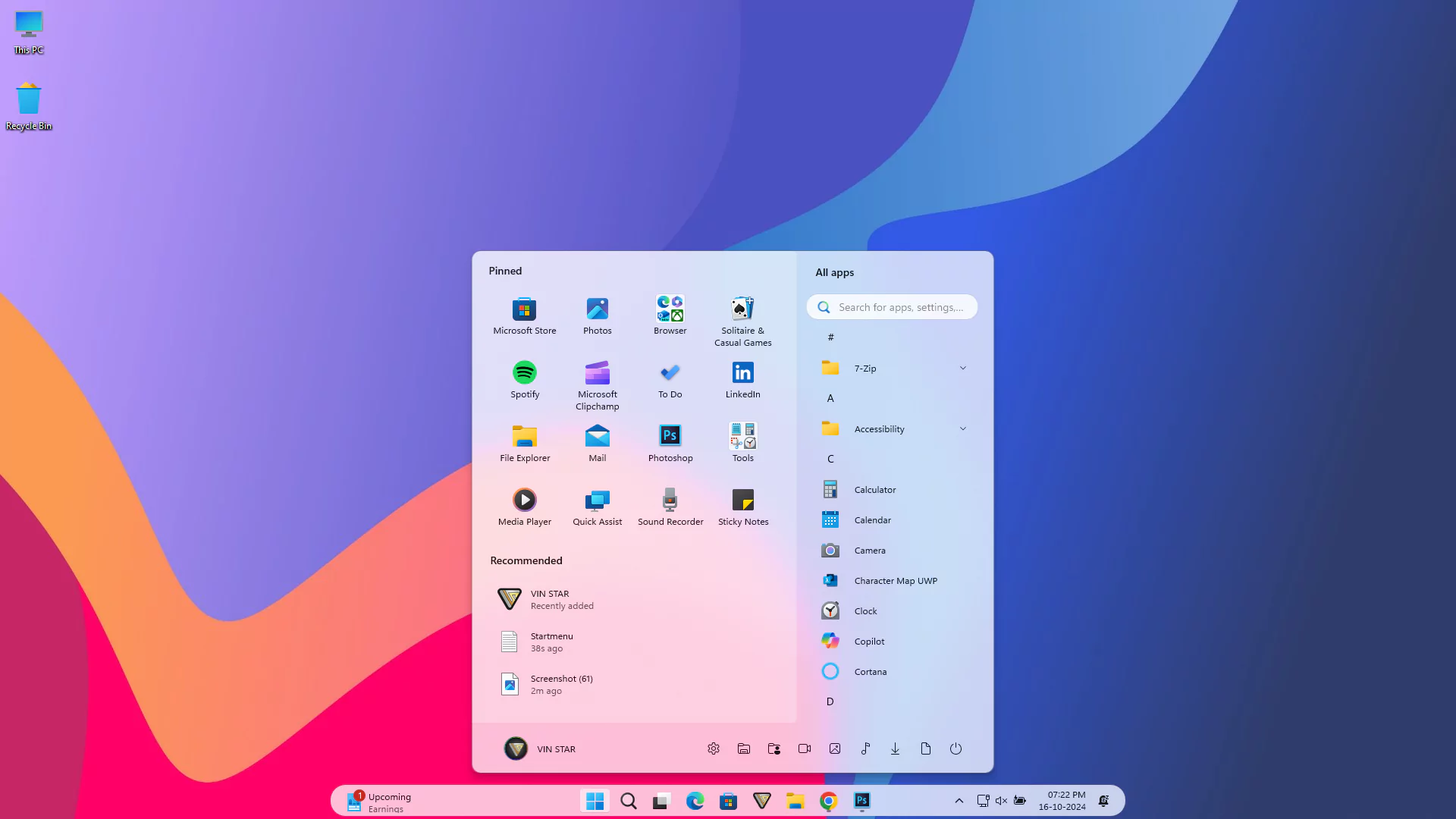
### Mod settings
**startmenu**
```yaml
theme: VinStar
styleConstants:
- Default_Width_Values=1050
- Default_Margin_Values=800
- Default_CornerRadius=20
- Default_Background=
- Margin=0,2,0,3
- Padding=0
- Visibility=Collapsed
- Width=Auto
controlStyles:
- target: Taskbar.TaskbarFrame#TaskbarFrame
styles:
- HorizontalAlignment=Center
- MaxWidth=$Default_Width_Values
- MinWidth=$Default_Width_Values
- Width=$Width
- target: Taskbar.TaskbarFrame#TaskbarFrame > Grid#RootGrid
styles:
- Background:=$Default_Background
- BorderBrush:=
- BorderThickness=1
- CornerRadius=$Default_CornerRadius
- Margin=$Margin
- Padding=6,0,6,0
- target: Rectangle#BackgroundFill
styles:
- Visibility=$Visibility
- target: Rectangle#BackgroundStroke
styles:
- Visibility=$Visibility
- target: Taskbar.AugmentedEntryPointButton#AugmentedEntryPointButton > Taskbar.TaskListButtonPanel#ExperienceToggleButtonRootPanel
styles:
- Margin=0
- target: Grid#SystemTrayFrameGrid
styles:
- Background:=#00000000
- BackgroundSizing=InnerBorderEdge
- BorderThickness=5
- CornerRadius=10
- Margin=$Margin
- target: SystemTray.ChevronIconView
styles:
- Padding=$Padding
- target: SystemTray.NotifyIconView#NotifyItemIcon
styles:
- Padding=$Padding
- target: SystemTray.OmniButton
styles:
- Padding=$Padding
- target: SystemTray.CopilotIcon
styles:
- Padding=$Padding
- target: SystemTray.OmniButton#NotificationCenterButton > Grid > ContentPresenter > ItemsPresenter > StackPanel > ContentPresenter > systemtray:IconView#SystemTrayIcon > Grid
styles:
- Padding=4,0,4,0
- target: SystemTray.IconView#SystemTrayIcon > Grid#ContainerGrid > ContentPresenter#ContentPresenter > Grid#ContentGrid > SystemTray.TextIconContent > Grid#ContainerGrid
styles:
- Padding=$Padding
- target: SystemTray.StackListView#IconStack > ItemsPresenter > StackPanel > ContentPresenter > SystemTray.IconView#SystemTrayIcon
styles:
- Padding=$Padding
- target: SystemTray.Stack#ShowDesktopStack
styles:
- Margin=0,-4,-12,-4
- target: Taskbar.Gripper#GripperControl
styles:
- MinWidth=24
- Width=$Width
- target: SystemTray.SystemTrayFrame
styles:
- HorizontalAlignment=1
- Margin=$Default_Margin_Values,0,0,0
```
**Start Menu Styler** used in these preview images: [Windows 12 Start Menu](https://www.vinstartheme.com/windows-12-start-menu/) and [Windows 12 Mini Start Menu](https://www.vinstartheme.com/windows-12-mini-start-menu/)

### Taskbar Width:
The width of the taskbar can be controlled by adjusting the **MaxWidth** and **MinWidth** properties. By default, the taskbar width is set to 1050 pixels.
**Default Values:**
```text
Default_Width_Values=1050
```
If you want to change the taskbar width, modify these values to your preferred width in pixels. For example, setting both to `1200` will make the taskbar 1200 pixels wide.
### System Tray Frame Adjustment:
If you adjust the taskbar width, you also need to modify the margin of the System Tray Frame to ensure it is aligned properly. The margin value should be adjusted to be approximately 250 pixels less than the new taskbar width.
**System Tray Frame Margin Adjustment:**
```text
Default_Margin_Values=800
```
For example, if the taskbar width is set to `1050` pixels, the margin should be `800`. If you change the taskbar width to `1200`, the margin would be `950`.
### Taskbar Corner Radius:
The corner radius defines the roundness of the taskbar’s corners. By default, it is set to `20`.
**Corner Radius Property:**
```text
Default_CornerRadius=20
```
You can increase or decrease this value depending on how rounded you want the corners to appear. A higher number increases the roundness, and a lower number reduces it.
### Taskbar Background: Opacity
The background of the taskbar is controlled using the **AcrylicBrush** property, which allows for a translucent effect. The background can be customized by adjusting the `TintLuminosityOpacity` values.
**Default Background Settings:**
```text
Default_Background=
```
**TintLuminosityOpacity** controls the brightness of the tint. You can adjust this between `0` (no luminosity) and `1` (full luminosity).
### Taskbar Background: Color
To change the background color according to your preference, locate the line “`Default_Background`” and modify its background value. For example,
```text
Default_Background=Pink
```
**Or**
```text
Default_Background=#ff1493
```
## Conclusion
By following these steps, you can easily achieve a Windows 11 Center Taskbar with the help of the Windows 11 Taskbar Styler Windhawk mod. This simple customization not only enhances the visual appeal of your desktop but also provides a more streamlined and modern look. With minimal effort, you can transform your taskbar into a key design element, giving your Windows 11 experience a fresh and organized feel.
---
**Original URL:** https://www.vinstartheme.com/windows-11-center-taskbar/