# Windows 12 Mini Start Menu
**Published:** October 21, 2024
**Author:** VIN STAR
**Categories:** Windows 11 Mod Styles, Windows 11 Start Menu Styler
**Tags:** Windhawk Mod Styles
---
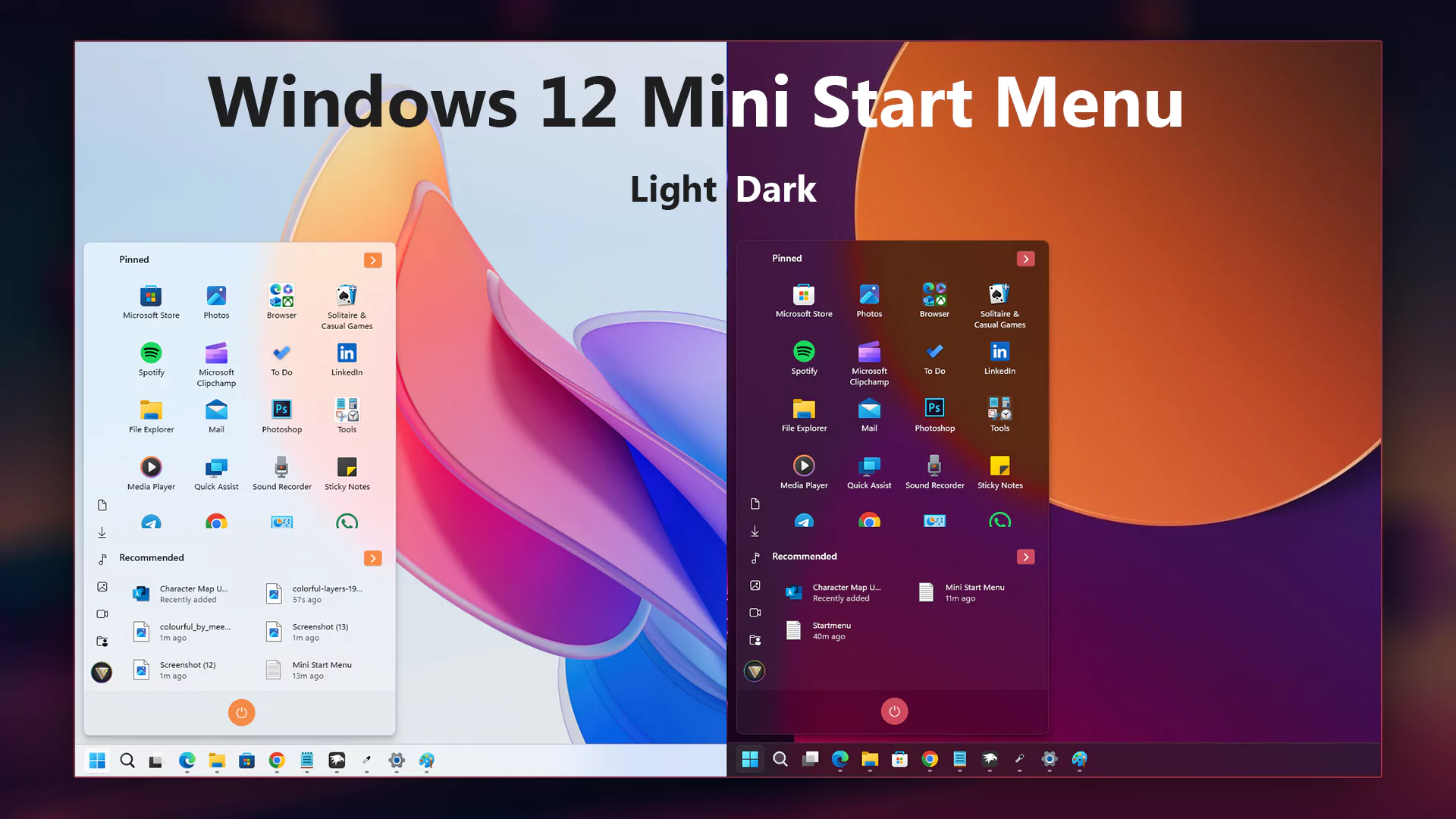
## Windows 12 Mini Start Menu for Windows 11
Transform your Windows 11 Start Menu to achieve a sleek Windows 12 look by following these simple steps using the **Windows 11 Start Menu Styler** Windhawk mod. This guide will walk you through the installation and customization process to enhance your Start Menu’s appearance effortlessly.
This theme is based on 1920*1080 and 100dpi, so it may look irregular at resolutions below that.
> ### Steps to Install Windhawk and the Mod:
>
>
> - Download and install [Windhawk](https://windhawk.net/).
> - Open Windhawk and go to “Explore” in the upper right menu.
> - Search for “**Windows 11 Start Menu Styler**” and click “Details.”
> - Click “Install” and accept any pop-ups.
> - After installing the mod, open its “Advanced” tab and Paste the given code into the Mod settings.
### Mod settings
**startmenu**
```yaml
theme: Mini Start Menu by VIN STAR
disableNewStartMenuLayout: legacyClassicLayout
styleConstants:
- Pinned_Height=370
- recommended_section=Visible
- Background=
- BorderBrush=
- CornerRadius=20
- CornerRadius2=4
- Margin=0
- Margin2=30,0,0,0
- Margin3=-30,0,0,0
- MinWidth=460
- Padding=5,3
- RequestedTheme=2
- Visibility=Visible
- Visibility2=Collapsed
- Width=460
controlStyles:
- target: StartMenu.StartInnerFrame
styles:
- Margin=0,35,0,0
- target: Grid#AllAppsPaneHeader
styles:
- Margin=100,0,0,10
- Padding=0,10,0,0
- Visibility=$Visibility
- target: Button#ZoomOutButton
styles:
- UseSystemFocusVisuals =1
- Visibility=$Visibility
- target: SemanticZoom#ZoomControl
styles:
- IsZoomOutButtonEnabled=true
- target: Grid#UndockedRoot
styles:
- Margin=$Margin
- MaxWidth=420
- target: StartDocked.StartSizingFrame
styles:
- MaxWidth=460
- MinWidth=$MinWidth
- target: Grid#RootContent
styles:
- MinWidth=$MinWidth
- target: Grid#InnerContent
styles:
- Margin=0,0,0,0
- target: Grid#AllAppsRoot
styles:
- Margin=$Margin
- Width=$Width
- target: Border#AcrylicBorder
styles:
- Background:=
- BorderBrush:=$BorderBrush
- BorderThickness=1
- target: Border#AppBorder
styles:
- Background:=
- BorderBrush:=$BorderBrush
- target: Border#LayerBorder
styles:
- Visibility=1
- target: TextBlock#UserTileNameText
styles:
- Visibility=$Visibility2
- target: Windows.UI.Xaml.Controls.Button#ZoomOutButton > Windows.UI.Xaml.Controls.ContentPresenter#ContentPresenter > Windows.UI.Xaml.Controls.TextBlock
styles:
- Text=
- target: Windows.UI.Xaml.Controls.Button#ZoomOutButton
styles:
- CornerRadius=$CornerRadius
- FontSize=18
- Height=40
- Margin=0,0,10,10
- Width=40
- target: Windows.UI.Xaml.Controls.TextBlock#AllAppsHeading
styles:
- Margin=-50,0,0,0
- Text=Windows Apps
- target: Border#Visible
styles:
- Visibility=$Visibility2
- target: Windows.UI.Xaml.Controls.ContentPresenter > Windows.UI.Xaml.Controls.StackPanel > Windows.UI.Xaml.Controls.TextBlock
styles:
- Margin=$Margin
- Text=
- target: StartDocked.NavigationPaneView
styles:
- Transform3D:=
- target: StartDocked.UserTileView#UserTile
styles:
- Transform3D:=
- target: StartDocked.AppListViewItem > Grid > ContentPresenter
styles:
- Transform3D:=
- target: StartDocked.PowerOptionsView
styles:
- Margin=-10,0,0,0
- Transform3D:=
- target: StartDocked.SearchBoxToggleButton
styles:
- Visibility=$Visibility2
- target: StartDocked.LauncherFrame > Grid#RootGrid > Grid#RootContent > Grid#MainContent > Grid#InnerContent > Rectangle
styles:
- Visibility=$Visibility2
- target: StartMenu.PinnedList
styles:
- Height=$Pinned_Height
- Width=$Width
- target: Button#ShowAllAppsButton
styles:
- Background:=$Background
- CornerRadius=$CornerRadius2
- Margin=$Margin2
- Padding=$Padding
- target: Button#ShowMoreSuggestionsButton
styles:
- Background:=$Background
- CornerRadius=$CornerRadius2
- Margin=$Margin2
- Padding=$Padding
- Visibility=$recommended_section
- target: Button#HideMoreSuggestionsButton
styles:
- Background:=$Background
- CornerRadius=$CornerRadius2
- Margin=$Margin2
- Padding=$Padding
- target: Button#CloseAllAppsButton
styles:
- Background:=$Background
- CornerRadius=$CornerRadius2
- Margin=0,0,20,0
- Padding=$Padding
- target: Windows.UI.Xaml.Controls.TextBlock#TopLevelSuggestionsListHeaderText
styles:
- Margin=$Margin3
- Visibility=$recommended_section
- target: Windows.UI.Xaml.Controls.TextBlock#PinnedListHeaderText
styles:
- Margin=$Margin3
- target: Windows.UI.Xaml.Controls.Grid#FrameRoot
styles:
- Margin=0,-30,0,0
- target: Windows.UI.Xaml.Controls.TextBlock#MoreSuggestionsListHeaderText
styles:
- Margin=$Margin3
- target: Windows.UI.Xaml.Controls.Grid#MoreSuggestionsContainer
styles:
- Margin=40,0,0,0
- Width=390
- target: Windows.UI.Xaml.Controls.StackPanel > Windows.UI.Xaml.Controls.FontIcon > Windows.UI.Xaml.Controls.Grid > Windows.UI.Xaml.Controls.TextBlock
styles:
- FontSize=15
- FontWeight=700
- RequestedTheme=$RequestedTheme
- target: Windows.UI.Xaml.Controls.GridView#RecommendedList > Windows.UI.Xaml.Controls.Border > Windows.UI.Xaml.Controls.ScrollViewer#ScrollViewer > Windows.UI.Xaml.Controls.Border#Root > Windows.UI.Xaml.Controls.Grid > Windows.UI.Xaml.Controls.ScrollContentPresenter#ScrollContentPresenter > Windows.UI.Xaml.Controls.ItemsPresenter > Windows.UI.Xaml.Controls.ItemsWrapGrid > Windows.UI.Xaml.Controls.GridViewItem
styles:
- MaxWidth=175
- MinWidth=175
- target: Windows.UI.Xaml.Controls.GridView#RecommendedList
styles:
- Margin=$Margin3
- Width=400
- target: StartDocked.UserTileView > StartDocked.NavigationPaneButton > Grid > Border
styles:
- Margin=8,0,8,0
- target: StartDocked.PowerOptionsView > StartDocked.NavigationPaneButton > Grid > Border
styles:
- Background:=$Background
- CornerRadius=$CornerRadius
- target: Windows.UI.Xaml.Controls.TextBlock[Text=]
styles:
- RequestedTheme=$RequestedTheme
- target: Windows.UI.Xaml.Controls.Grid#InnerContent > Windows.UI.Xaml.Shapes.Rectangle
styles:
- Margin=-200,50,0,0
```
### How to remove Recommended
To remove the recommended section from the start menu, paste the following code just above the closing brace `}`at the end of the script
```text
Pinned_Height=593
recommended_section=Collapsed
```
## Conclusion
By following these steps, you can easily transform your Windows 11 Start Menu to resemble the modern and sleek Windows 12 concept style. This customization not only enhances the visual appeal but also provides a refreshed user experience, making your Start Menu more enjoyable and functional.
Screen size 1920*1080 and above
---
**Original URL:** https://www.vinstartheme.com/windows-12-mini-start-menu/