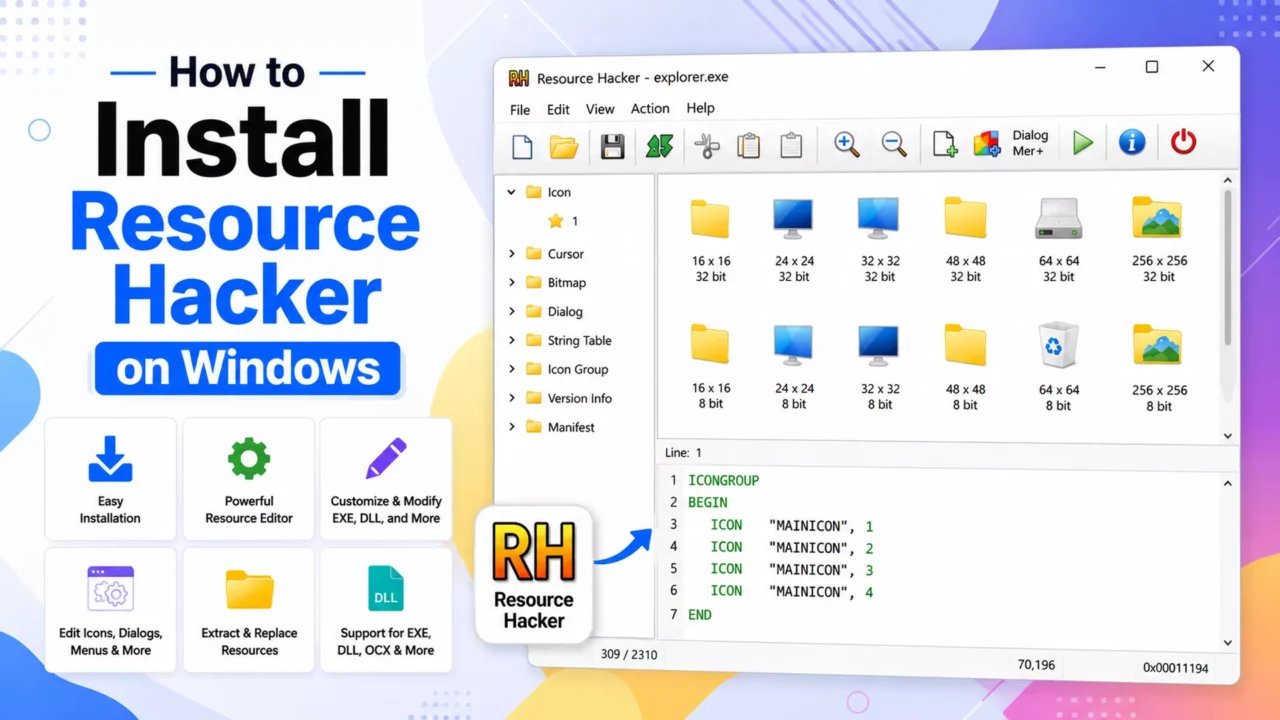
How to Install Resource Hacker on Windows 10 & 11
Resource Hacker is one of the most popular tools for editing resources inside Windows executable files (EXE), DLL files, icons, dialogs, menus, and other resources. It is widely used by Windows customization enthusiasts to create icon packs, modify applications, and build custom themes.
In this guide, you’ll learn how to download and install Resource Hacker on Windows 10 and Windows 11, understand the basic interface, and prepare the tool for icon customization projects such as Windhawk Resource Redirect themes.
What is Resource Hacker?
Resource Hacker is a free resource editor for Windows that allows you to:
- Replace application icons
- Edit DLL and EXE resources
- Modify dialogs and menus
- Change bitmaps and PNG resources
- Edit string tables
- Create custom Windows icon packs
Because it provides direct access to Windows resources, it has become a standard tool for Windows customization and theme development.
System Requirements
- Windows 10 or Windows 11
- 64-bit or 32-bit Windows
- Administrator privileges (recommended)
- Internet connection for downloading
Step 1: Download Resource Hacker
Download Resource Hacker from the official website:
The official site provides two versions:
- Installer Version (.exe) – Recommended for most users.
- Portable ZIP Version – Can be used without installation.
Step 2: Install Resource Hacker
Using the Installer Version
- Double-click the downloaded
ResourceHacker_setup.exe. - Click Next and Accept the license agreement.
- Choose the installation folder.
- Click Install and Wait for the installation to finish.
- Click Finish.
Resource Hacker is now installed and ready to use.
Using the Portable ZIP Version
- Download the ZIP archive from the official website.
- Extract it to any folder.
- Open the extracted folder.
- Run
ResourceHacker.exe.
No installation is required when using the portable version.
Step 3: Launch Resource Hacker
After installation:
- Open the Start Menu.
- Search for Resource Hacker.
- Click the application to launch it.
You may also run it as Administrator when working with protected files.
Resource Hacker Interface Overview
When you open Resource Hacker, you’ll see:
| Area | Description |
|---|---|
| Menu Bar | File, Edit, Action, View, and Help options |
| Resource Tree | Lists icons, dialogs, menus, strings, and other resources |
| Editor Pane | Displays the selected resource |
| Status Bar | Shows file and resource information |
Open a File in Resource Hacker
- Click File → Open.
- Select an EXE or DLL file.
- Click Open.
The resource tree will populate with all available resources inside the file.
How to Replace an Icon
- Open a file such as
imageres.dll. - Expand Icon Group.
- Select the icon you want to replace.
- Choose Action → Replace Icon.
- Select a new
.icofile. - Click Replace.
- Save the modified file.
For safer customization, use the modified file with Windhawk Resource Redirect instead of replacing the original system file.
Recommended Workflow
- Copy the original Windows DLL file.
- Edit the copy in Resource Hacker.
- Save the modified version.
- Create a
theme.inifile. - Use the modified file with Windhawk Resource Redirect.
This approach avoids modifying protected Windows system files directly.
Common Resource Types
| Resource Type | Purpose |
|---|---|
| Icon | Individual icon images |
| Icon Group | Collection of icon sizes |
| Bitmap | BMP images |
| PNG | Modern image resources |
| Dialog | Application windows |
| Menu | Application menus |
| String Table | Text strings used by applications |
Troubleshooting
Resource Hacker won’t open a file
- Run Resource Hacker as Administrator.
- Make sure the file is not in use by another program.
- Copy the file to another folder before editing.
Changes are not visible
- Clear the Windows icon cache.
- Restart Windows Explorer.
- Make sure the modified file is being used.
Access denied error
- Run Resource Hacker as Administrator.
- Edit a copied file instead of the original system file.
Best Practices
- Always keep a backup of the original file.
- Use ICO files that contain multiple sizes (16×16, 32×32, 48×48, 256×256).
- Test changes on copied files first.
- Use Resource Redirect for applying system icon themes safely.
Frequently Asked Questions
Is Resource Hacker free?
Yes. Resource Hacker is free for personal and commercial use.
Does Resource Hacker work on Windows 11?
Yes. It supports both Windows 10 and Windows 11.
Can I edit system DLL files directly?
Technically yes, but it is safer to edit a copy and use Resource Redirect to apply the changes.
Can Resource Hacker create icon packs?
Yes. Many Windows icon themes are created using Resource Hacker to modify resource files.
Conclusion
Installing Resource Hacker on Windows 10 or Windows 11 is straightforward. After downloading the official installer or portable version, you can begin editing icons, dialogs, menus, and other resources within EXE and DLL files. For Windows system icon customization, the safest workflow is to modify copied files with Resource Hacker and apply them through Windhawk Resource Redirect.
This setup gives you the flexibility to create custom Windows icon themes, experiment with resource editing, and restore the original Windows appearance whenever needed.